Virtual Cloud Variables
We call virtual variables those variables that are not acquired directly from a sensor or device connected to an Optimo IoT AL300 Gateway.
Variables calculated in dashboard widgets
Most of the widgets that can be used to form dashboards internally support the display of data calculated based on one or more variables through arbitrary formulas. For this use, it is not necessary to create virtual variables as described in this chapter
Virtual variables calculated within the AL300
Within the AL300 Gateways, it is possible to use Node-RED to create local virtual variables managed solely by the AL300. The virtual variables described on this page are instead created and processed by the Optimo IoT cloud platform.
There are three types of virtual variables, based on how their values are populated:
- Variables with values calculated periodically by the cloud platform, based on mathematical or logical formulas involving other variables (e.g. daily average temperature, alarm status based on multiple sensors, etc.)
- Variables with values calculated when queried, based on mathematical or logical formulas involving other variables (e.g. difference between two temperatures, alarm status based on multiple sensors, etc.)
- Variables with values entered via API (e.g. market prices, weather conditions, status of an external device, etc.) that can be used to create more complete dashboards
Virtual variables can be created from the Asset Explorer:

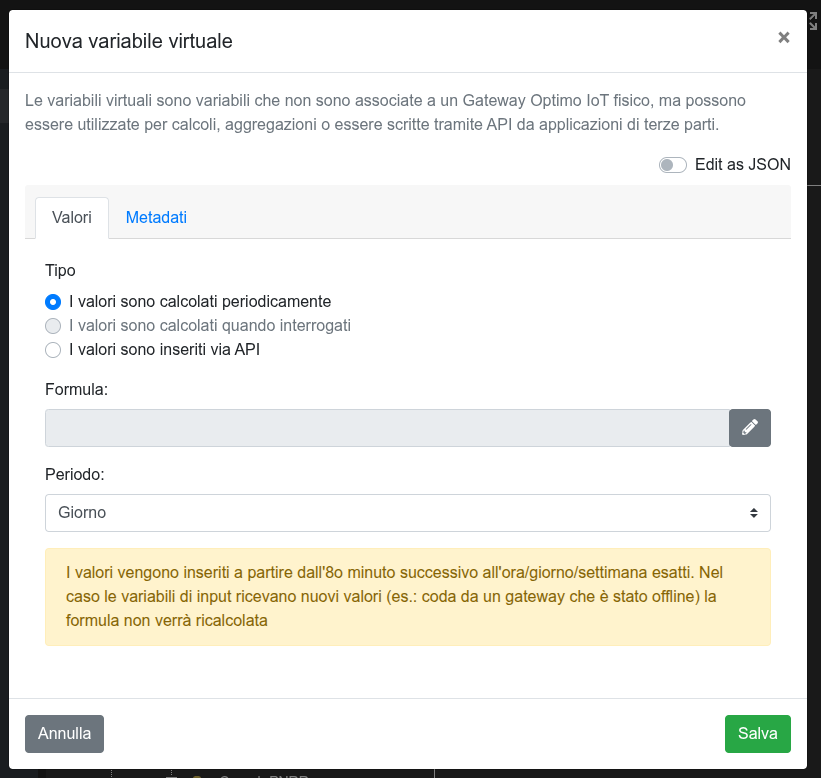
Since they cannot be associated with a specific AL300, this possibility is given only for assets that are not part of the hierarchy of an AL300 Gateway.
Variables with values calculated periodically
With the specified frequency, the Optimo IoT Cloud executes the formula specified by the user and saves the result as the value of the variable.
The possible frequencies are:
- hourly
- daily
- weekly
Within the formula, it is possible to use as input variables statistics (e.g. average, minimum, maximum, sum, count, etc.) calculated on other variables in a time interval defined relative to the moment of execution of the formula (e.g. last hour, last day, last week, last month, etc.).
Here are some examples of what can be the value of a variable:
- the maximum value of the temperature detected by a set of sensors in the last hour
0if the temperature of a set of sensors in the last 12 hours has always been below a threshold,1otherwise (useful for creating an alarm)- calculate the sum of the energy consumed by the general meters of different establishments in the last day
Formula
Click on the pencil icon to open the formula editor. To define the formula, you must first specify the input variables and then write the mathematical or logical expression that involves them.
Input variables
Each input variable is the result of a statistic calculated on a variable acquired by the cloud platform in a time interval defined relative to the moment of execution of the formula.
Click on "Add input variable":
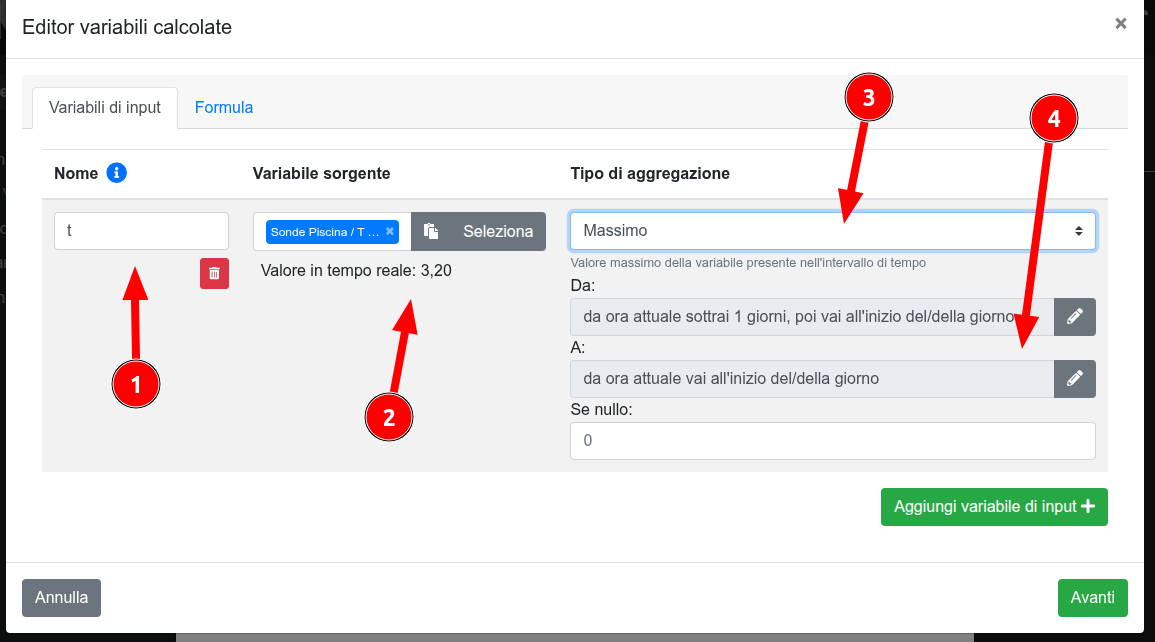
Specify:
- the name to use in the formula to refer to it
- the variable on which to calculate the statistic (it can be any variable acquired by the cloud platform)
- The type of statistic to calculate (e.g. average, minimum, maximum, sum, count, etc.). Here is the complete list.
- the time interval on which to calculate the statistic (e.g. last 3 hours)
It is also possible to specify a value to use in case there are no values of the variable on which to calculate the statistic (e.g. no data acquired in the specified time interval).
Expression
Once the variables are defined, you can write the expression.
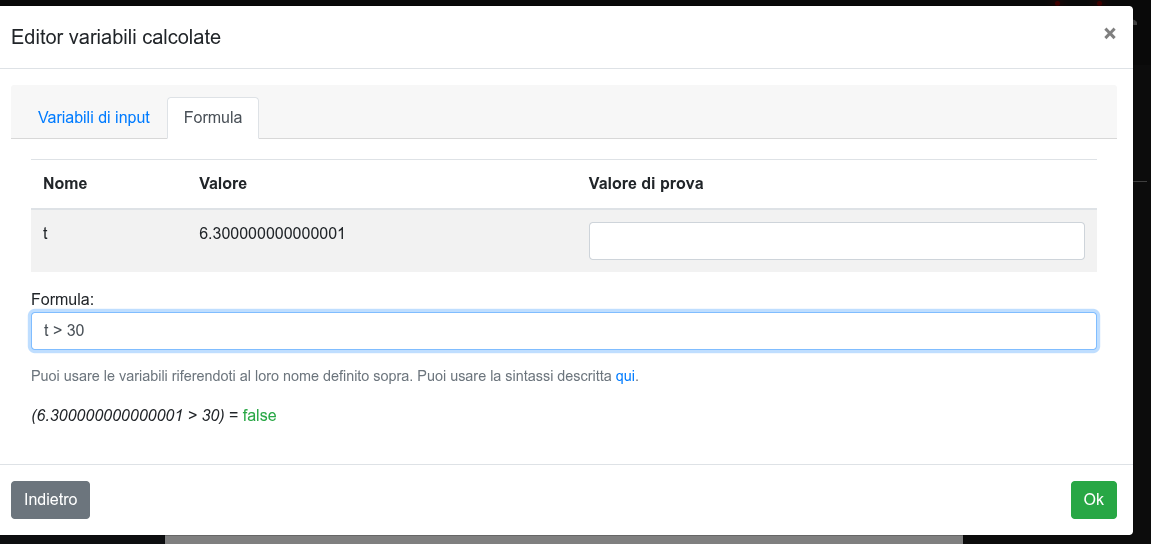
You can view in real time the values of the input variables and the final result obtained. You can simulate arbitrary input values to check the functioning of the formula.
The syntax of the expression is described here.
Variables with values calculated when queried
The use of this type of virtual variable is not made publicly available to all customers
Variables with values entered via API
Once the variable is created, it is possible to insert historical or real-time values using the /injest endpoint described in the HTTP API documentation.
If the virtual variable is configured as an alarm variable, the values entered via API can also cause the sending of alarm notifications